add a ‘standard conditions’ sign

To add the standard conditions sign to enthalpy changes or electrode potentials I used to use an ordinary o crossed-out and superscripted:

However, I now use the symbol ϴ as a superscript. It’s too big so I make it font size 8 then raise it by 3 points. I wouldn’t want to do that every time I need a standard sign so it’s quicker to use the macro here.

draw an electrode potential table

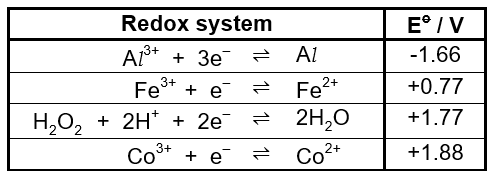
If you are producing resources for the electrochemistry topic you often need to draw this table:

It looks like a two-column table but if the left-hand column is actually three columns you can keep the equilibrium signs underneath each other in their own narrow column which has no left or right border.

Once you have made this table you can save it in Building Blocks using the method here. It can then be called up quickly and easily, as can any table.

The macro below draws this four-column table with column headings and equilibrium signs already populated. Column 1 is aligned right, column 2 is justified, column 3 is aligned left and column 4 is justified, as are the column headings. When you add the equations they are already formatted as above.

Selection.Delete unit:=wdCharacter, Count:=1

'make table
        ActiveDocument.Tables.Add Range:=Selection.Range, NumRows:=5, NumColumns:= _
        4, DefaultTableBehavior:=wdWord9TableBehavior, AutoFitBehavior:= _
        wdAutoFitFixed
    With Selection.Tables(1)
        If .Style <> "Table Grid" Then
            .Style = "Table Grid"
        End If
        .ApplyStyleHeadingRows = True
        .ApplyStyleLastRow = False
        .ApplyStyleFirstColumn = True
        .ApplyStyleLastColumn = False
        .ApplyStyleRowBands = True
        .ApplyStyleColumnBands = False
    End With
   
   'set column widths
    Selection.Tables(1).Columns(2).SetWidth ColumnWidth:=106.8, RulerStyle:= _
        wdAdjustNone
    Selection.Tables(1).Columns(2).SetWidth ColumnWidth:=99.7, RulerStyle:= _
        wdAdjustNone
    Selection.Tables(1).Columns(2).SetWidth ColumnWidth:=92.6, RulerStyle:= _
        wdAdjustNone
    Selection.Tables(1).Columns(2).SetWidth ColumnWidth:=85.5, RulerStyle:= _
        wdAdjustNone
    Selection.Tables(1).Columns(2).SetWidth ColumnWidth:=78.45, RulerStyle:= _
        wdAdjustNone
    Selection.Tables(1).Columns(2).SetWidth ColumnWidth:=71.35, RulerStyle:= _
        wdAdjustNone
    Selection.Tables(1).Columns(2).SetWidth ColumnWidth:=64.25, RulerStyle:= _
        wdAdjustNone
    Selection.Tables(1).Columns(2).SetWidth ColumnWidth:=57.15, RulerStyle:= _
        wdAdjustNone
    Selection.Tables(1).Columns(2).SetWidth ColumnWidth:=50.1, RulerStyle:= _
        wdAdjustNone
    Selection.Tables(1).Columns(2).SetWidth ColumnWidth:=43, RulerStyle:= _
        wdAdjustNone
    Selection.Tables(1).Columns(2).SetWidth ColumnWidth:=35.9, RulerStyle:= _
        wdAdjustNone
    Selection.Tables(1).Columns(2).SetWidth ColumnWidth:=28.8, RulerStyle:= _
        wdAdjustNone
    Selection.Tables(1).Columns(2).SetWidth ColumnWidth:=21.75, RulerStyle:= _
        wdAdjustNone
    Selection.Tables(1).Columns(2).SetWidth ColumnWidth:=21.75, RulerStyle:= _
        wdAdjustNone
    Selection.Tables(1).Columns(4).SetWidth ColumnWidth:=107, RulerStyle:= _
        wdAdjustNone
    Selection.Tables(1).Columns(4).SetWidth ColumnWidth:=99.9, RulerStyle:= _
        wdAdjustNone
    Selection.Tables(1).Columns(4).SetWidth ColumnWidth:=92.8, RulerStyle:= _
        wdAdjustNone
    Selection.Tables(1).Columns(4).SetWidth ColumnWidth:=85.75, RulerStyle:= _
        wdAdjustNone
    Selection.Tables(1).Columns(4).SetWidth ColumnWidth:=78.65, RulerStyle:= _
        wdAdjustNone
    Selection.Tables(1).Columns(4).SetWidth ColumnWidth:=71.55, RulerStyle:= _
        wdAdjustNone
    Selection.Tables(1).Columns(4).SetWidth ColumnWidth:=64.45, RulerStyle:= _
        wdAdjustNone
    Selection.Tables(1).Columns(4).SetWidth ColumnWidth:=57.4, RulerStyle:= _
        wdAdjustNone
    Selection.Tables(1).Columns(4).SetWidth ColumnWidth:=50.3, RulerStyle:= _
        wdAdjustNone
    Selection.Tables(1).Columns(4).SetWidth ColumnWidth:=43.2, RulerStyle:= _
        wdAdjustNone
    Selection.Tables(1).Columns(4).SetWidth ColumnWidth:=36.1, RulerStyle:= _
        wdAdjustNone
    Selection.Tables(1).Columns(4).SetWidth ColumnWidth:=43.2, RulerStyle:= _
        wdAdjustNone
    Selection.Tables(1).Columns(4).SetWidth ColumnWidth:=43.2, RulerStyle:= _
        wdAdjustNone
    Selection.Tables(1).Columns(2).SetWidth ColumnWidth:=21.75, RulerStyle:= _
        wdAdjustNone
    Selection.Tables(1).Columns(2).SetWidth ColumnWidth:=28.8, RulerStyle:= _
        wdAdjustNone
    Selection.Tables(1).Columns(2).SetWidth ColumnWidth:=35.9, RulerStyle:= _
        wdAdjustNone
    Selection.Tables(1).Columns(2).SetWidth ColumnWidth:=43, RulerStyle:= _
        wdAdjustNone
    Selection.Tables(1).Columns(2).SetWidth ColumnWidth:=43, RulerStyle:= _
        wdAdjustNone
    Selection.Tables(1).Columns(1).SetWidth ColumnWidth:=112.7, RulerStyle:= _
        wdAdjustNone
    Selection.Tables(1).Columns(1).SetWidth ColumnWidth:=120.25, RulerStyle:= _
        wdAdjustNone
    Selection.Tables(1).Columns(1).SetWidth ColumnWidth:=127.35, RulerStyle:= _
        wdAdjustNone
    Selection.Tables(1).Columns(1).SetWidth ColumnWidth:=134.45, RulerStyle:= _
        wdAdjustNone
    Selection.Tables(1).Columns(1).SetWidth ColumnWidth:=127.35, RulerStyle:= _
        wdAdjustNone
    Selection.Tables(1).Columns(1).SetWidth ColumnWidth:=134.45, RulerStyle:= _
        wdAdjustNone
    Selection.Tables(1).Columns(1).SetWidth ColumnWidth:=134.45, RulerStyle:= _
        wdAdjustNone
    Selection.Tables(1).Columns(2).SetWidth ColumnWidth:=43, RulerStyle:= _
        wdAdjustNone
    Selection.Tables(1).Columns(2).SetWidth ColumnWidth:=35.4, RulerStyle:= _
        wdAdjustNone
    Selection.Tables(1).Columns(2).SetWidth ColumnWidth:=28.35, RulerStyle:= _
        wdAdjustNone
    Selection.Tables(1).Columns(2).SetWidth ColumnWidth:=21.25, RulerStyle:= _
        wdAdjustNone
    Selection.Tables(1).Columns(2).SetWidth ColumnWidth:=21.25, RulerStyle:= _
        wdAdjustNone
    Selection.Tables(1).Columns(3).SetWidth ColumnWidth:=106.3, RulerStyle:= _
        wdAdjustNone
    Selection.Tables(1).Columns(3).SetWidth ColumnWidth:=99.2, RulerStyle:= _
        wdAdjustNone
    Selection.Tables(1).Columns(3).SetWidth ColumnWidth:=92.15, RulerStyle:= _
        wdAdjustNone
    Selection.Tables(1).Columns(3).SetWidth ColumnWidth:=92.15, RulerStyle:= _
        wdAdjustNone
    Selection.MoveRight unit:=wdCharacter, Count:=3
    
   'type E standard heading
    With Selection.Font
    .Bold = True
    End With
    Selection.TypeText Text:="E"
    Selection.Font.Superscript = wdToggle
    With Selection.Font
        .Name = "Arial"
        .Size = 11
        .Position = 2
        .Bold = True
    End With
    Selection.Font.Size = 8
    Selection.InsertSymbol Font:="Arial", CharacterNumber:=1012, Unicode:=True
    Selection.Font.Size = 11
    Selection.Font.Superscript = wdToggle
    With Selection.Font
        .Name = "Arial"
        .Size = 11
        .Bold = True
        .Position = 0
    End With
    Selection.TypeText Text:=" / V"
    Selection.Font.Bold = wdToggle
 Selection.ParagraphFormat.Alignment = wdAlignParagraphCenter

 
 'type equilibrium signs
 Selection.MoveDown unit:=wdLine, Count:=1
 Selection.MoveLeft unit:=wdCharacter, Count:=2
 Selection.TypeText Text:=ChrW(8652)
 Selection.MoveDown unit:=wdLine, Count:=1
 Selection.TypeText Text:=ChrW(8652)
 Selection.MoveDown unit:=wdLine, Count:=1
 Selection.TypeText Text:=ChrW(8652)
 Selection.MoveDown unit:=wdLine, Count:=1
 Selection.TypeText Text:=ChrW(8652)
 Selection.MoveRight unit:=wdCharacter, Count:=2
 Selection.MoveUp unit:=wdLine, Count:=3
 
 'justifying columns first line
 Selection.ParagraphFormat.Alignment = wdAlignParagraphCenter
 
 Selection.MoveLeft unit:=wdCharacter, Count:=1
 Selection.ParagraphFormat.Alignment = wdAlignParagraphLeft
 
 Selection.MoveLeft unit:=wdCharacter, Count:=1
 Selection.ParagraphFormat.Alignment = wdAlignParagraphCenter
 
 Selection.MoveLeft unit:=wdCharacter, Count:=2
 Selection.ParagraphFormat.Alignment = wdAlignParagraphRight
 
 Selection.MoveRight unit:=wdCharacter, Count:=4
 Selection.MoveDown unit:=wdLine, Count:=1
 
'justifying columns second line
 Selection.ParagraphFormat.Alignment = wdAlignParagraphCenter
 
 Selection.MoveLeft unit:=wdCharacter, Count:=1
 Selection.ParagraphFormat.Alignment = wdAlignParagraphLeft
 
 Selection.MoveLeft unit:=wdCharacter, Count:=1
 Selection.ParagraphFormat.Alignment = wdAlignParagraphCenter
 
 Selection.MoveLeft unit:=wdCharacter, Count:=2
 Selection.ParagraphFormat.Alignment = wdAlignParagraphRight
 
 Selection.MoveRight unit:=wdCharacter, Count:=4
 Selection.MoveDown unit:=wdLine, Count:=1


'justifying columns third line
 Selection.ParagraphFormat.Alignment = wdAlignParagraphCenter
 
 Selection.MoveLeft unit:=wdCharacter, Count:=1
 Selection.ParagraphFormat.Alignment = wdAlignParagraphLeft
 
 Selection.MoveLeft unit:=wdCharacter, Count:=1
 Selection.ParagraphFormat.Alignment = wdAlignParagraphCenter
 
 Selection.MoveLeft unit:=wdCharacter, Count:=2
 Selection.ParagraphFormat.Alignment = wdAlignParagraphRight
 
 Selection.MoveRight unit:=wdCharacter, Count:=4
 Selection.MoveDown unit:=wdLine, Count:=1

'justifying columns fourth line
 Selection.ParagraphFormat.Alignment = wdAlignParagraphCenter
 
 Selection.MoveLeft unit:=wdCharacter, Count:=1
 Selection.ParagraphFormat.Alignment = wdAlignParagraphLeft
 
 Selection.MoveLeft unit:=wdCharacter, Count:=1
 Selection.ParagraphFormat.Alignment = wdAlignParagraphCenter
 
 Selection.MoveLeft unit:=wdCharacter, Count:=2
 Selection.ParagraphFormat.Alignment = wdAlignParagraphRight
 
 Selection.MoveRight unit:=wdCharacter, Count:=4
 Selection.MoveUp unit:=wdLine, Count:=4

'middle column no left and right borders
Selection.MoveDown unit:=wdLine, Count:=1
Selection.MoveLeft unit:=wdCharacter, Count:=2

'remove border at top
Selection.Borders(wdBorderTop).LineStyle = wdLineStyleNone
    Selection.Borders(wdBorderLeft).LineStyle = wdLineStyleNone
    Selection.Borders(wdBorderBottom).LineStyle = wdLineStyleNone
    Selection.Borders(wdBorderRight).LineStyle = wdLineStyleNone
    Selection.Borders(wdBorderDiagonalDown).LineStyle = wdLineStyleNone
    Selection.Borders(wdBorderDiagonalUp).LineStyle = wdLineStyleNone
    
'remove border one down
    Selection.MoveDown unit:=wdLine, Count:=1
    Selection.Borders(wdBorderTop).LineStyle = wdLineStyleNone
    Selection.Borders(wdBorderLeft).LineStyle = wdLineStyleNone
    Selection.Borders(wdBorderBottom).LineStyle = wdLineStyleNone
    Selection.Borders(wdBorderRight).LineStyle = wdLineStyleNone
    Selection.Borders(wdBorderDiagonalDown).LineStyle = wdLineStyleNone
    Selection.Borders(wdBorderDiagonalUp).LineStyle = wdLineStyleNone
    
 'remove border one down
    Selection.MoveDown unit:=wdLine, Count:=1
    Selection.Borders(wdBorderTop).LineStyle = wdLineStyleNone
    Selection.Borders(wdBorderLeft).LineStyle = wdLineStyleNone
    Selection.Borders(wdBorderBottom).LineStyle = wdLineStyleNone
    Selection.Borders(wdBorderRight).LineStyle = wdLineStyleNone
    Selection.Borders(wdBorderDiagonalDown).LineStyle = wdLineStyleNone
    Selection.Borders(wdBorderDiagonalUp).LineStyle = wdLineStyleNone
    
 'remove border one down
    Selection.MoveDown unit:=wdLine, Count:=1
    Selection.Borders(wdBorderTop).LineStyle = wdLineStyleNone
    Selection.Borders(wdBorderLeft).LineStyle = wdLineStyleNone
    Selection.Borders(wdBorderBottom).LineStyle = wdLineStyleNone
    Selection.Borders(wdBorderRight).LineStyle = wdLineStyleNone
      
  'add border at bottom
    With Selection.Borders(wdBorderBottom)
        .LineStyle = Options.DefaultBorderLineStyle
        .LineWidth = Options.DefaultBorderLineWidth
        .Color = Options.DefaultBorderColor
    End With
    
 'add border at one up from bottom
    Selection.MoveUp unit:=wdLine, Count:=1
    With Selection.Borders(wdBorderBottom)
        .LineStyle = Options.DefaultBorderLineStyle
        .LineWidth = Options.DefaultBorderLineWidth
        .Color = Options.DefaultBorderColor
    End With
    
  'add border one up
    Selection.MoveUp unit:=wdLine, Count:=1
    With Selection.Borders(wdBorderBottom)
        .LineStyle = Options.DefaultBorderLineStyle
        .LineWidth = Options.DefaultBorderLineWidth
        .Color = Options.DefaultBorderColor
    End With
    
'add border one up
    Selection.MoveUp unit:=wdLine, Count:=1
    With Selection.Borders(wdBorderBottom)
        .LineStyle = Options.DefaultBorderLineStyle
        .LineWidth = Options.DefaultBorderLineWidth
        .Color = Options.DefaultBorderColor
    End With
    
'add border one up
    Selection.MoveUp unit:=wdLine, Count:=1
    With Selection.Borders(wdBorderBottom)
        .LineStyle = Options.DefaultBorderLineStyle
        .LineWidth = Options.DefaultBorderLineWidth
        .Color = Options.DefaultBorderColor
    End With
    
'add border one up
    With Selection.Borders(wdBorderTop)
        .LineStyle = Options.DefaultBorderLineStyle
        .LineWidth = Options.DefaultBorderLineWidth
        .Color = Options.DefaultBorderColor
    End With
             
'merge two cells
 Dim mrgrng As Range
With Selection.Tables(1)
    
Set mrgrng = .Cell(1, 1).Range
mrgrng.End = .Cell(1, 3).Range.End
mrgrng.Cells.Merge
End With

'type E standard heading and align
Selection.Font.Bold = wdToggle
Selection.Font.Name = "Arial"
Selection.Font.Size = 11
Selection.TypeText Text:="Redox system"
Selection.Font.Bold = wdToggle
Selection.ParagraphFormat.Alignment = wdAlignParagraphCenter
 
End Sub


format an exam paper

At Southampton we do AQA GCSE and OCR A level. I like to take exam papers from different exam boards, convert them to Word using the free method here then modify them for our exam board. I run House style over the finished paper then apply the macro below. This spaces the lines 1.5 lines apart and puts a border round the pages from page 2 onwards.

Sub ExamPaper()

'border
Selection.WholeStory
    With Selection.Sections(1)
        With .Borders(wdBorderLeft)
            .LineStyle = wdLineStyleSingle
            .LineWidth = wdLineWidth050pt
            .Color = wdColorAutomatic
        End With
        With .Borders(wdBorderRight)
            .LineStyle = wdLineStyleSingle
            .LineWidth = wdLineWidth050pt
            .Color = wdColorAutomatic
        End With
        With .Borders(wdBorderTop)
            .LineStyle = wdLineStyleSingle
            .LineWidth = wdLineWidth050pt
            .Color = wdColorAutomatic
        End With
        With .Borders(wdBorderBottom)
            .LineStyle = wdLineStyleSingle
            .LineWidth = wdLineWidth050pt
            .Color = wdColorAutomatic
        End With
        With .Borders
            .DistanceFrom = wdBorderDistanceFromPageEdge
            .AlwaysInFront = True
            .SurroundHeader = True
            .SurroundFooter = True
            .JoinBorders = False
            .DistanceFromTop = 24
            .DistanceFromLeft = 24
            .DistanceFromBottom = 24
            .DistanceFromRight = 24
            .Shadow = False
            .EnableFirstPageInSection = False
            .EnableOtherPagesInSection = True
        End With
    End With
    With Options
        .DefaultBorderLineStyle = wdLineStyleSingle
        .DefaultBorderLineWidth = wdLineWidth050pt
        .DefaultBorderColor = wdColorAutomatic
    End With
    
  '1.5 line spacing
  Selection.WholeStory
    With Selection.ParagraphFormat
        .LeftIndent = CentimetersToPoints(0)
        .RightIndent = CentimetersToPoints(0)
        .SpaceBefore = 0
        .SpaceBeforeAuto = False
        .SpaceAfter = 0
        .SpaceAfterAuto = False
        .LineSpacingRule = wdLineSpace1pt5
        .Alignment = wdAlignParagraphJustify
        .WidowControl = True
        .KeepWithNext = False
        .KeepTogether = False
        .PageBreakBefore = False
        .NoLineNumber = False
        .Hyphenation = True
        .FirstLineIndent = CentimetersToPoints(0)
        .OutlineLevel = wdOutlineLevelBodyText
        .CharacterUnitLeftIndent = 0
        .CharacterUnitRightIndent = 0
        .CharacterUnitFirstLineIndent = 0
        .LineUnitBefore = 0
        .LineUnitAfter = 0
        .MirrorIndents = False
        .TextboxTightWrap = wdTightNone
        .CollapsedByDefault = False
    End With
End Sub


remove automatic numbering but keep the numbers

Automatic numbering is a good servant but a bad master. It’s possible to turn it off but what happens if you have somebody else’s document with lots of automatic numbering that you want to turn off but keep the numbers generated by it? My Australian colleague Ned Alaru gave me such a document. The code to keep the numbers is just one line long:

Sub RemoveAutomaticNumbering()
ActiveDocument.Range.ListFormat.ConvertNumbersToText
End Sub

replace the short minus sign, raise the superscripts and lower the subscripts

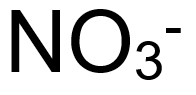
If you write the formula for the nitrate ion in Arial you get this:

The minus sign is too small and the subscript and superscript look wrong. There is a better minus sign than the one on the keyboard, called the n-dash since it takes up the same space as a letter n. Use the table here to find its Unicode value. The subscripts look better if they are lowered by 2 points and the superscripts look better if they are raised by 2 points. This makes the nitrate ion look like this:

The macro below replaces all the minus signs in the document and alters the subscripts and superscripts accordingly:

Sub ReplaceMinus()

'replace minus
Selection.Find.ClearFormatting
    Selection.Find.Replacement.ClearFormatting
    With Selection.Find
        .Text = "-"
        .Replacement.Text = "–"
        .Forward = True
        .Wrap = wdFindContinue
        .Format = False
        .MatchCase = False
        .MatchWholeWord = False
        .MatchWildcards = False
        .MatchSoundsLike = False
        .MatchAllWordForms = False
    End With
    Selection.Find.Execute Replace:=wdReplaceAll
    'superscript and subscript
    'lower and raise subscripts and superscripts
   Selection.WholeStory
    Selection.Find.ClearFormatting
    With Selection.Find.Font
        .Superscript = False
        .Subscript = True
    End With
    Selection.Find.Replacement.ClearFormatting
    With Selection.Find.Replacement.Font
        .Superscript = False
        .Subscript = True
        .Position = -2
    End With
    With Selection.Find
        .Text = "([A-Za-z0-9+-])"
        .Replacement.Text = "\1"
        .Forward = True
        .Wrap = wdFindContinue
        .Format = True
        .MatchCase = False
        .MatchWholeWord = False
        .MatchAllWordForms = False
        .MatchSoundsLike = False
        .MatchWildcards = True
    End With
    Selection.Find.Execute Replace:=wdReplaceAll
    Selection.Find.ClearFormatting
    With Selection.Find.Font
        .Superscript = True
        .Subscript = False
    End With
    Selection.Find.Replacement.ClearFormatting
    With Selection.Find.Replacement.Font
        .Superscript = True
        .Subscript = False
        .Position = 2
    End With
    With Selection.Find
        .Text = "([A-Za-z0-9+–])"
        .Replacement.Text = "\1"
        .Forward = True
        .Wrap = wdFindContinue
        .Format = True
        .MatchCase = False
        .MatchWholeWord = False
        .MatchAllWordForms = False
        .MatchSoundsLike = False
        .MatchWildcards = True
    End With
    Selection.Find.Execute Replace:=wdReplaceAll
  Selection.WholeStory
    Selection.Find.ClearFormatting
    With Selection.Find.Font
        .Superscript = True
        .Subscript = False
    End With
    Selection.Find.Replacement.ClearFormatting
    With Selection.Find.Replacement.Font
        .Superscript = True
        .Subscript = False
        .Position = 2
    End With
    With Selection.Find
        .Text = "(–)"
        .Replacement.Text = "\1"
        .Forward = True
        .Wrap = wdFindContinue
        .Format = True
        .MatchCase = False
        .MatchWholeWord = False
        .MatchAllWordForms = False
        .MatchSoundsLike = False
        .MatchWildcards = True
    End With
    Selection.Find.Execute Replace:=wdReplaceAll    
End Sub

align [marks] to the right

At Southampton Exam Factory we do AQA GCSE, which puts [3 marks] at the end of a question, and OCR A level, which puts [3] at the end of a diagram question. Both are aligned right, but the Chemistry House style macro here justifies the document. So when I convert a question paper pdf to Word and change it to House style I run the macro below over it to send all my marks in square brackets to the right:

Sub MoveTotals()

'Total
Selection.WholeStory
    Selection.Find.ClearFormatting
    Selection.Find.Replacement.ClearFormatting
    With Selection.Find.Replacement.ParagraphFormat
        .SpaceBeforeAuto = False
        .SpaceAfterAuto = False
        .Alignment = wdAlignParagraphRight
    End With
    With Selection.Find
        .Text = "(\[Tot)"
        .Replacement.Text = "\1"
        .Forward = True
        .Wrap = wdFindContinue
        .Format = True
        .MatchCase = False
        .MatchWholeWord = False
        .MatchAllWordForms = False
        .MatchSoundsLike = False
        .MatchWildcards = True
    End With
    Selection.Find.Execute Replace:=wdReplaceAll
        
    '[3]
    Selection.WholeStory
    Selection.Find.ClearFormatting
    Selection.Find.Replacement.ClearFormatting
    With Selection.Find.Replacement.ParagraphFormat
        .SpaceBeforeAuto = False
        .SpaceAfterAuto = False
        .Alignment = wdAlignParagraphRight
    End With
    With Selection.Find
        .Text = "(\[[0-9]\])"
        .Replacement.Text = "\1"
        .Forward = True
        .Wrap = wdFindContinue
        .Format = True
        .MatchCase = False
        .MatchWholeWord = False
        .MatchAllWordForms = False
        .MatchSoundsLike = False
        .MatchWildcards = True
    End With
     Selection.Find.Execute Replace:=wdReplaceAll
     
     '4 marks
Selection.WholeStory
    Selection.Find.ClearFormatting
    Selection.Find.Replacement.ClearFormatting
    With Selection.Find.Replacement.ParagraphFormat
        .SpaceBeforeAuto = False
        .SpaceAfterAuto = False
        .Alignment = wdAlignParagraphRight
    End With
    With Selection.Find
        .Text = "(\[[0-9] marks\])"
        .Replacement.Text = "\1"
        .Forward = True
        .Wrap = wdFindContinue
        .Format = True
        .MatchCase = False
        .MatchWholeWord = False
        .MatchAllWordForms = False
        .MatchSoundsLike = False
        .MatchWildcards = True
    End With
   Selection.Find.Execute Replace:=wdReplaceAll
End Sub

change text font in a text box

We had a colleague in the Chemistry Department, Laura End, who went off to teach in Malaysia. She generously left behind a large number of Chemistry resources but they were all in Clown font – Comic Sans. If you change the font of a document to Grown-Up font, Arial, it won’t change the contents of text boxes so you have to go through changing the contents of text boxes individually.

The following macro will change the contents of all the textboxes in a document to Grown-Up font:

Sub ChangeTextInTextbox()
    Dim objShape As Shape
  Dim objDoc As Document
   Set objDoc = ActiveDocument
   With objDoc
    For Each objShape In .Shapes
     If objShape.Type = msoTextBox Then
        objShape.TextFrame.TextRange.Font.Name = “Arial”
        objShape.TextFrame.TextRange.Font.Size = “11”
        objShape.TextFrame.TextRange.Font.Color = wdColorBlack
        objShape.TextFrame.TextRange.ParagraphFormat.Alignment = wdAlignParagraphJustify
      End If
    Next
  End With
  End Sub

format a document in House style with one click

Dan L Urea, my American colleague in the Chemistry Department at Southampton Exam Factory, said, ‘Wouldn’t it be good if you could convert any document to our House style with just one click.’ House style in Chemistry is Arial size 11, justified, single line spacing and tab stops every 1cm:

If, in every Chemistry document we use, the First Line Indent, Left Indent and Right Indent are set up as above, along with the tabs in those positions, it means that we can cut and paste easily between documents. The icon is handily-available on the Quick Access Toolbar:

The following macro will convert anybody else’s document to Chemistry House style:

Sub FormatPortrait()
 Selection.WholeStory
    With ActiveDocument.Styles(wdStyleNormal).Font
        If .NameFarEast = .NameAscii Then
            .NameAscii = “”
        End If
        .NameFarEast = “”
    End With
    With ActiveDocument.PageSetup
        .LineNumbering.Active = False
        .Orientation = wdOrientPortrait
        .TopMargin = CentimetersToPoints(1.6)
        .BottomMargin = CentimetersToPoints(1.6)
        .LeftMargin = CentimetersToPoints(2.54)
        .RightMargin = CentimetersToPoints(2.54)
        .Gutter = CentimetersToPoints(0)
        .HeaderDistance = CentimetersToPoints(1.25)
        .FooterDistance = CentimetersToPoints(1.25)
        .PageWidth = CentimetersToPoints(21)
        .PageHeight = CentimetersToPoints(29.7)
        .FirstPageTray = wdPrinterDefaultBin
        .OtherPagesTray = wdPrinterDefaultBin
        .SectionStart = wdSectionNewPage
        .OddAndEvenPagesHeaderFooter = False
        .DifferentFirstPageHeaderFooter = False
        .VerticalAlignment = wdAlignVerticalTop
        .SuppressEndnotes = False
        .MirrorMargins = False
        .TwoPagesOnOne = False
        .BookFoldPrinting = False
        .BookFoldRevPrinting = False
        .BookFoldPrintingSheets = 1
        .GutterPos = wdGutterPosLeft
    End With
    With Selection.ParagraphFormat
        .SpaceBeforeAuto = False
        .SpaceAfterAuto = False
        .FirstLineIndent = CentimetersToPoints(0.25)
    End With
    With Selection.ParagraphFormat
        .SpaceBeforeAuto = False
        .SpaceAfterAuto = False
        .FirstLineIndent = CentimetersToPoints(0.5)
    End With
    With Selection.ParagraphFormat
        .SpaceBeforeAuto = False
        .SpaceAfterAuto = False
        .FirstLineIndent = CentimetersToPoints(0.5)
    End With
    Selection.PageSetup.LeftMargin = CentimetersToPoints(2.5)
    Selection.PageSetup.LeftMargin = CentimetersToPoints(2.25)
    Selection.PageSetup.LeftMargin = CentimetersToPoints(2)
    Selection.PageSetup.LeftMargin = CentimetersToPoints(2)
    With Selection.ParagraphFormat
        .SpaceBeforeAuto = False
        .SpaceAfterAuto = False
        .FirstLineIndent = CentimetersToPoints(0.25)
    End With
    With Selection.ParagraphFormat
        .SpaceBeforeAuto = False
        .SpaceAfterAuto = False
        .FirstLineIndent = CentimetersToPoints(0)
    End With
    With Selection.ParagraphFormat
        .SpaceBeforeAuto = False
        .SpaceAfterAuto = False
        .FirstLineIndent = CentimetersToPoints(0)
    End With
    Selection.PageSetup.RightMargin = CentimetersToPoints(2.5)
    Selection.PageSetup.RightMargin = CentimetersToPoints(2.25)
    Selection.PageSetup.RightMargin = CentimetersToPoints(2)
    Selection.PageSetup.RightMargin = CentimetersToPoints(2)
    Selection.ParagraphFormat.TabStops.ClearAll
    ActiveDocument.DefaultTabStop = CentimetersToPoints(1.27)
    Selection.ParagraphFormat.TabStops.Add Position:=CentimetersToPoints(1), _
        Alignment:=wdAlignTabLeft, Leader:=wdTabLeaderSpaces
    Selection.ParagraphFormat.TabStops.Add Position:=CentimetersToPoints(2), _
        Alignment:=wdAlignTabLeft, Leader:=wdTabLeaderSpaces
    Selection.ParagraphFormat.TabStops.Add Position:=CentimetersToPoints(3), _
        Alignment:=wdAlignTabLeft, Leader:=wdTabLeaderSpaces
    Selection.ParagraphFormat.TabStops.Add Position:=CentimetersToPoints(4), _
        Alignment:=wdAlignTabLeft, Leader:=wdTabLeaderSpaces
    Selection.ParagraphFormat.TabStops.Add Position:=CentimetersToPoints(5), _
        Alignment:=wdAlignTabLeft, Leader:=wdTabLeaderSpaces
    Selection.ParagraphFormat.TabStops.Add Position:=CentimetersToPoints(6), _
        Alignment:=wdAlignTabLeft, Leader:=wdTabLeaderSpaces
    Selection.ParagraphFormat.TabStops.Add Position:=CentimetersToPoints(7), _
        Alignment:=wdAlignTabLeft, Leader:=wdTabLeaderSpaces
    Selection.ParagraphFormat.TabStops.Add Position:=CentimetersToPoints(8), _
        Alignment:=wdAlignTabLeft, Leader:=wdTabLeaderSpaces
    Selection.ParagraphFormat.TabStops.Add Position:=CentimetersToPoints(9), _
        Alignment:=wdAlignTabLeft, Leader:=wdTabLeaderSpaces
    Selection.ParagraphFormat.TabStops.Add Position:=CentimetersToPoints(10), _
        Alignment:=wdAlignTabLeft, Leader:=wdTabLeaderSpaces
    Selection.ParagraphFormat.TabStops.Add Position:=CentimetersToPoints(11), _
        Alignment:=wdAlignTabLeft, Leader:=wdTabLeaderSpaces
    Selection.ParagraphFormat.TabStops.Add Position:=CentimetersToPoints(12), _
        Alignment:=wdAlignTabLeft, Leader:=wdTabLeaderSpaces
    Selection.ParagraphFormat.TabStops.Add Position:=CentimetersToPoints(13), _
        Alignment:=wdAlignTabLeft, Leader:=wdTabLeaderSpaces
    Selection.ParagraphFormat.TabStops.Add Position:=CentimetersToPoints(14), _
        Alignment:=wdAlignTabLeft, Leader:=wdTabLeaderSpaces
    Selection.ParagraphFormat.TabStops.Add Position:=CentimetersToPoints(15), _
        Alignment:=wdAlignTabLeft, Leader:=wdTabLeaderSpaces
    Selection.ParagraphFormat.TabStops.Add Position:=CentimetersToPoints(16), _
        Alignment:=wdAlignTabLeft, Leader:=wdTabLeaderSpaces
    Selection.Font.Name = “Arial”
    Selection.Font.Size = 11
    Selection.WholeStory
    Selection.ParagraphFormat.Alignment = wdAlignParagraphJustify
    With Selection.ParagraphFormat
        .LeftIndent = CentimetersToPoints(0)
        .RightIndent = CentimetersToPoints(0)
        .SpaceBefore = 0
        .SpaceBeforeAuto = False
        .SpaceAfter = 0
        .SpaceAfterAuto = False
        .LineSpacingRule = wdLineSpaceSingle
        .Alignment = wdAlignParagraphJustify
        .WidowControl = True
        .KeepWithNext = False
        .KeepTogether = False
        .PageBreakBefore = False
        .NoLineNumber = False
        .Hyphenation = True
        .FirstLineIndent = CentimetersToPoints(0)
        .OutlineLevel = wdOutlineLevelBodyText
        .CharacterUnitLeftIndent = 0
        .CharacterUnitRightIndent = 0
        .CharacterUnitFirstLineIndent = 0
        .LineUnitBefore = 0
        .LineUnitAfter = 0
        .MirrorIndents = False
        .TextboxTightWrap = wdTightNone
        .CollapsedByDefault = False
    End With
End Sub

add ‘Your answer’ and the box to multiple choice questions

I produce a lot of practice papers for my A level students and I take multiple choice questions from AQA and Edexcel papers. This means that I need to add the ‘Your answer’ and the box. I used to just copy and paste it from a different paper but now I click on my macro to add them.

The macro tabs along one tab so you need to have your tab stops set up in the same position as mine – see my macro here. It also adds the [1] at the end of the line. The box is a symbol, found using the macro here.

Sub YourAnswer()
    Selection.TypeText Text:=vbTab & “Your answer” & vbTab
    Selection.InsertSymbol Font:=”Arial”, CharacterNumber:=-9408, Unicode:= _
        True
    Selection.InsertSymbol Font:=”Arial”, CharacterNumber:=-8950, Unicode:= _
        True
    Selection.Find.ClearFormatting
    Selection.Find.Replacement.ClearFormatting
    Selection.Find.Replacement.Font.Size = 42
    With Selection.Find
        .Text = ChrW(56128) & ChrW(56586)
        .Replacement.Text = ChrW(56128) & ChrW(56586)
        .Forward = True
        .Wrap = wdFindContinue
        .Format = True
        .MatchCase = False
        .MatchWholeWord = False
        .MatchWildcards = False
        .MatchSoundsLike = False
        .MatchAllWordForms = False
    End With
    Selection.Find.Execute Replace:=wdReplaceAll
    Selection.Font.Size = 11
    Selection.TypeText Text:=vbTab & vbTab & vbTab & vbTab & vbTab _
    & vbTab & vbTab & vbTab & vbTab & vbTab & vbTab & ”     ” & “[1]”
End Sub

format all subscripts and superscripts with one click

Every year at Southampton Exam Factory we set our Year 12 students a project to write on an area of interest to them. The end results are wonderful in their scope and execution but why won’t they use the subscript and superscript buttons? It really grates on my nerves to see Pt(NH3)2Cl2 (sorry).

My colleague Ms. Lara Nude said one day, ‘Wouldn’t it be wonderful if there was a single button you can press which will activate everybody’s superscripts and subscripts instantly?’ So I made a macro to do exactly that, and put it on my Quick Access toolbar.

The macro first goes through the document looking for all examples of a number immediately after a letter, then subscripts the number. This will turn CH3CH2CH3 into CH3CH2CH3 but will also turn Mg2+ into Mg2+. So then it goes through again looking for all examples of a number with a + or a – after it and superscripts the number and the + or -. Since the macro will turn chemical nonsense such as Al3An2+ Ru2De2- into Al3An2+ Ru2De2– it will handle any real formulae and is better than macros which use a database. It is not 100% reliable since it does not know whether you want VO2+ to be VO2+  or VO2+. If you had intended the Alan Rude example above to be Al3An2+ Ru2De2 you would have to go back and change it.

The macro also lowers all subscripts by 2 points and raises all superscripts by 2 points – see my macro here for more details. It also replaces the standard minus sign with a longer one – see my macro here for more details.

After formatting the chemical formulae there is a message box and a beep – if you don’t like this just take out the last line of code, or change the message to one of your choice.

Sub SuperSubscript()
    ‘subscript all numbers
    Selection.WholeStory
    Selection.Find.ClearFormatting
    Selection.Find.Replacement.ClearFormatting
    With Selection.Find
        .Text = “([ABCDEFGHIJKLMNOPRSTUVWYZabcdefghijklmnoprstuvwyz])([0-9])”
        .Replacement.Text = “\1++\2++”
        .Forward = True
        .Wrap = wdFindContinue
        .Format = False
        .MatchCase = False
        .MatchWholeWord = False
        .MatchAllWordForms = False
        .MatchSoundsLike = False
        .MatchWildcards = True
    End With
    Selection.Find.Execute Replace:=wdReplaceAll
    Selection.Find.ClearFormatting
    Selection.Find.Replacement.ClearFormatting
    With Selection.Find.Replacement.Font
        .Superscript = False
        .Subscript = True
    End With
    With Selection.Find
        .Text = “++([0-9])++”
        .Replacement.Text = “\1”
        .Forward = True
        .Wrap = wdFindContinue
        .Format = True
        .MatchCase = False
        .MatchWholeWord = False
        .MatchAllWordForms = False
        .MatchSoundsLike = False
        .MatchWildcards = True
    End With
    Selection.Find.Execute Replace:=wdReplaceAll
    Selection.Find.ClearFormatting
    Selection.Find.Replacement.ClearFormatting
    With Selection.Find
        .Text = _
            “([ABCDEFGHIJKLMNOPRSTUVWYZabcdefghijklmnoprstuvwyz])([0-9])([0-9])”
        .Replacement.Text = “\1\2++\3++”
        .Forward = True
        .Wrap = wdFindContinue
        .Format = False
        .MatchCase = False
        .MatchWholeWord = False
        .MatchAllWordForms = False
        .MatchSoundsLike = False
        .MatchWildcards = True
    End With
    Selection.Find.Execute Replace:=wdReplaceAll
    Selection.Find.ClearFormatting
    Selection.Find.Replacement.ClearFormatting
    With Selection.Find.Replacement.Font
        .Superscript = False
        .Subscript = True
    End With
    With Selection.Find
        .Text = “++([0-9])++”
        .Replacement.Text = “\1”
        .Forward = True
        .Wrap = wdFindContinue
        .Format = True
        .MatchCase = False
        .MatchWholeWord = False
        .MatchAllWordForms = False
        .MatchSoundsLike = False
        .MatchWildcards = True
    End With
    ‘replace minus sign
    Selection.Find.Execute Replace:=wdReplaceAll
    Selection.Find.ClearFormatting
    Selection.Find.Replacement.ClearFormatting
    With Selection.Find
        .Text = “-“
        .Replacement.Text = “–”
        .Forward = True
        .Wrap = wdFindContinue
        .Format = False
        .MatchCase = False
        .MatchWholeWord = False
        .MatchAllWordForms = False
        .MatchSoundsLike = False
        .MatchWildcards = True
    End With
    ‘superscript numbers with + or –
    Selection.Find.Execute Replace:=wdReplaceAll
    Selection.Find.ClearFormatting
    Selection.Find.Replacement.ClearFormatting
    With Selection.Find
        .Text = “([A-Za-z])([0-9])([+–])”
        .Replacement.Text = “\1++\2\3++”
        .Forward = True
        .Wrap = wdFindContinue
        .Format = False
        .MatchCase = False
        .MatchWholeWord = False
        .MatchAllWordForms = False
        .MatchSoundsLike = False
        .MatchWildcards = True
    End With
    Selection.Find.Execute Replace:=wdReplaceAll
    Selection.Find.ClearFormatting
    Selection.Find.Replacement.ClearFormatting
    With Selection.Find.Replacement.Font
        .Superscript = True
        .Subscript = False
    End With
    With Selection.Find
        .Text = “++([0-9])([+–])++”
        .Replacement.Text = “\1\2”
        .Forward = True
        .Wrap = wdFindContinue
        .Format = True
        .MatchCase = False
        .MatchWholeWord = False
        .MatchAllWordForms = False
        .MatchSoundsLike = False
        .MatchWildcards = True
    End With
    Selection.Find.Execute Replace:=wdReplaceAll
    Selection.Find.ClearFormatting
    Selection.Find.Replacement.ClearFormatting
    With Selection.Find
        .Text = “([A-Za-z])([+–])( )”
        .Replacement.Text = “\1++\2++\3”
        .Forward = True
        .Wrap = wdFindContinue
        .Format = False
        .MatchCase = False
        .MatchWholeWord = False
        .MatchAllWordForms = False
        .MatchSoundsLike = False
        .MatchWildcards = True
    End With
    Selection.Find.Execute Replace:=wdReplaceAll
    Selection.Find.ClearFormatting
    Selection.Find.Replacement.ClearFormatting
    With Selection.Find.Replacement.Font
        .Superscript = True
        .Subscript = False
    End With
    With Selection.Find
        .Text = “++([+–])++”
        .Replacement.Text = “\1”
        .Forward = True
        .Wrap = wdFindContinue
        .Format = True
        .MatchCase = False
        .MatchWholeWord = False
        .MatchAllWordForms = False
        .MatchSoundsLike = False
        .MatchWildcards = True
    End With
 ‘sort out hydrogencarbonate ion
    Selection.Find.Execute Replace:=wdReplaceAll
    Selection.Find.ClearFormatting
    Selection.Find.Replacement.ClearFormatting
    With Selection.Find
        .Text = “(O)([3-4])(–)”
        .Replacement.Text = “\1++\2++\3”
        .Forward = True
        .Wrap = wdFindContinue
        .Format = False
        .MatchCase = False
        .MatchWholeWord = False
        .MatchAllWordForms = False
        .MatchSoundsLike = False
        .MatchWildcards = True
    End With
    Selection.Find.Execute Replace:=wdReplaceAll
    Selection.Find.ClearFormatting
    Selection.Find.Replacement.ClearFormatting
    With Selection.Find.Replacement.Font
        .Superscript = False
        .Subscript = True
    End With
    With Selection.Find
        .Text = “++([3-4])++”
        .Replacement.Text = “\1”
        .Forward = True
        .Wrap = wdFindContinue
        .Format = True
        .MatchCase = False
        .MatchWholeWord = False
        .MatchAllWordForms = False
        .MatchSoundsLike = False
        .MatchWildcards = True
    End With
    Selection.Find.Execute Replace:=wdReplaceAll
    Selection.Find.ClearFormatting
    Selection.Find.Replacement.ClearFormatting
    With Selection.Find
        .Text = “++([3-4])++”
        .Replacement.Text = “\1”
        .Forward = True
        .Wrap = wdFindContinue
        .Format = False
        .MatchCase = False
        .MatchWholeWord = False
        .MatchAllWordForms = False
        .MatchSoundsLike = False
        .MatchWildcards = True
    End With
    ‘sort out dichromate ion
    Selection.Find.ClearFormatting
    Selection.Find.Replacement.ClearFormatting
    With Selection.Find
        .Text = “(O)([1-9])([1-9])(–)”
        .Replacement.Text = “\1\2++\3\4++”
        .Forward = True
        .Wrap = wdFindContinue
        .Format = False
        .MatchCase = False
        .MatchWholeWord = False
        .MatchAllWordForms = False
        .MatchSoundsLike = False
        .MatchWildcards = True
    End With
    Selection.Find.Execute Replace:=wdReplaceAll
    Selection.Find.ClearFormatting
    Selection.Find.Replacement.ClearFormatting
    With Selection.Find.Replacement.Font
        .Superscript = True
        .Subscript = False
    End With
    With Selection.Find
        .Text = “++([1-9])(–)++”
        .Replacement.Text = “\1\2”
        .Forward = True
        .Wrap = wdFindContinue
        .Format = True
        .MatchCase = False
        .MatchWholeWord = False
        .MatchAllWordForms = False
        .MatchSoundsLike = False
        .MatchWildcards = True
    End With
    Selection.Find.Execute Replace:=wdReplaceAll
    ‘sort out thiosulfate ion
    Selection.WholeStory
    Selection.Find.ClearFormatting
    Selection.Find.Replacement.ClearFormatting
    With Selection.Find
        .Text = “(S)([0-9])(O)([0-9])(2)(–)”
        .Replacement.Text = “\1\2\3\4++2–++”
        .Forward = True
        .Wrap = wdFindContinue
        .Format = False
        .MatchCase = False
        .MatchWholeWord = False
        .MatchAllWordForms = False
        .MatchSoundsLike = False
        .MatchWildcards = True
    End With
    Selection.Find.Execute Replace:=wdReplaceAll
    Selection.Find.ClearFormatting
    Selection.Find.Replacement.ClearFormatting
    With Selection.Find.Replacement.Font
        .Superscript = True
        .Subscript = False
    End With
    With Selection.Find
        .Text = “++2–++”
        .Replacement.Text = “2–”
        .Forward = True
        .Wrap = wdFindContinue
        .Format = True
        .MatchCase = False
        .MatchWholeWord = False
        .MatchAllWordForms = False
        .MatchSoundsLike = False
        .MatchWildcards = True
    End With
    Selection.Find.Execute Replace:=wdReplaceAll
     ‘lower and raise subscripts and superscripts
   Selection.WholeStory
    Selection.Find.ClearFormatting
    With Selection.Find.Font
        .Superscript = False
        .Subscript = True
    End With
    Selection.Find.Replacement.ClearFormatting
    With Selection.Find.Replacement.Font
        .Superscript = False
        .Subscript = True
        .Position = -2
    End With
    With Selection.Find
        .Text = “([A-Za-z0-9+-])”
        .Replacement.Text = “\1”
        .Forward = True
        .Wrap = wdFindContinue
        .Format = True
        .MatchCase = False
        .MatchWholeWord = False
        .MatchAllWordForms = False
        .MatchSoundsLike = False
        .MatchWildcards = True
    End With
    Selection.Find.Execute Replace:=wdReplaceAll
    Selection.Find.ClearFormatting
    With Selection.Find.Font
        .Superscript = True
        .Subscript = False
    End With
    Selection.Find.Replacement.ClearFormatting
    With Selection.Find.Replacement.Font
        .Superscript = True
        .Subscript = False
        .Position = 2
    End With
    With Selection.Find
        .Text = “([A-Za-z0-9+–])”
        .Replacement.Text = “\1”
        .Forward = True
        .Wrap = wdFindContinue
        .Format = True
        .MatchCase = False
        .MatchWholeWord = False
        .MatchAllWordForms = False
        .MatchSoundsLike = False
        .MatchWildcards = True
    End With
    Selection.Find.Execute Replace:=wdReplaceAll
  Selection.WholeStory
    Selection.Find.ClearFormatting
    With Selection.Find.Font
        .Superscript = True
        .Subscript = False
    End With
    Selection.Find.Replacement.ClearFormatting
    With Selection.Find.Replacement.Font
        .Superscript = True
        .Subscript = False
        .Position = 2
    End With
    With Selection.Find
        .Text = “(–)”
        .Replacement.Text = “\1”
        .Forward = True
        .Wrap = wdFindContinue
        .Format = True
        .MatchCase = False
        .MatchWholeWord = False
        .MatchAllWordForms = False
        .MatchSoundsLike = False
        .MatchWildcards = True
    End With
    Selection.Find.Execute Replace:=wdReplaceAll  
  BeepMsg “formatted by Big Al”
End Sub