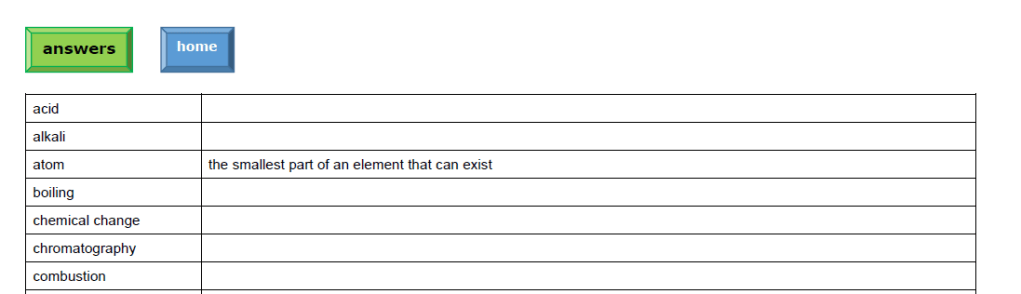
I use a lot of tables when I am making resources here at Southampton and I always like them in this format:
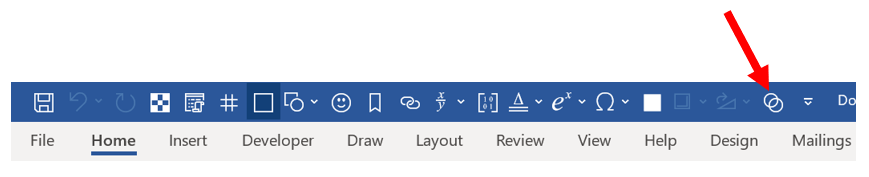
I used to spend a lot of time formatting each table that I drew but now I have an icon on my Quick Access Toolbar. When I press this button I get a message asking me how many columns I want – 1, 2, 3 or 4. When I have selected, it draws me a table formatted as above then asks me if I want bold lines for the outside border. So with two clicks and a number inserted I get a table set up to suit me, with default five lines. The code is here:
Sub TableChoice()

'make popup box
10 Dim Message, Title, MyValue
Message = "enter a value between 1 and 4"
Title = "how many columns do you want?"

'deal with inputs
MyValue = InputBox(Message, Title, MyValue)
If MyValue = 1 Then GoTo 100
If MyValue = 2 Then GoTo 2000
If MyValue = 3 Then GoTo 3000
If MyValue = 4 Then GoTo 4000
If MyValue = "" Then GoTo 5000

'deal with wrong inputs
BeepMsg "you were told to choose 1 to 4 columns, numpty"
GoTo 10

'one column
'draw table
100    ActiveDocument.Tables.Add Range:=Selection.Range, NumRows:=5, NumColumns:= _
        1, DefaultTableBehavior:=wdWord9TableBehavior, AutoFitBehavior:= _
        wdAutoFitFixed

 'find table number
 Dim J As Integer
    Dim iTableNum As Integer
    Dim oTbl As Table
    Selection.Bookmarks.Add ("TempBM")
    For J = 1 To ActiveDocument.Tables.Count
        Set oTbl = ActiveDocument.Tables(J)
        oTbl.Select
        If Selection.Bookmarks.Exists("TempBM") Then
           iTableNum = J
           Exit For
       End If
   Next J
    ActiveDocument.Bookmarks("TempBM").Select
    ActiveDocument.Bookmarks("TempBM").Delete
 If ActiveDocument.Tables.Count >= 1 Then
 'Selection.TypeText Text:="here"
'ActiveDocument.Tables(iTableNum).Cell(1, 1).Delete
End If

'give table number and ask for bold
Select Case MsgBox("bold lines around table " & iTableNum, vbYesNo)
Case vbNo
            GoTo 900
      Case vbYes
            GoTo 950
    End Select

'justify columns and make heading bold if not bold
900 Selection.Font.Bold = wdToggle                      'line1
    Selection.ParagraphFormat.Alignment = wdAlignParagraphCenter
    Selection.MoveDown Unit:=wdLine, Count:=1           'line2
    Selection.ParagraphFormat.Alignment = wdAlignParagraphLeft
    Selection.MoveDown Unit:=wdLine, Count:=1           'line3
    Selection.ParagraphFormat.Alignment = wdAlignParagraphLeft
    Selection.MoveDown Unit:=wdLine, Count:=1           'line4
    Selection.ParagraphFormat.Alignment = wdAlignParagraphLeft
    Selection.MoveDown Unit:=wdLine, Count:=1           'line5
    Selection.ParagraphFormat.Alignment = wdAlignParagraphLeft
    Selection.MoveUp Unit:=wdLine, Count:=4
 GoTo 5000

 'justify columns and make heading bold if bold selected
950 Selection.Font.Bold = wdToggle                      'line1
    Selection.ParagraphFormat.Alignment = wdAlignParagraphCenter
    Selection.MoveDown Unit:=wdLine, Count:=1           'line2
    Selection.ParagraphFormat.Alignment = wdAlignParagraphLeft
    Selection.MoveDown Unit:=wdLine, Count:=1           'line3
    Selection.ParagraphFormat.Alignment = wdAlignParagraphLeft
    Selection.MoveDown Unit:=wdLine, Count:=1           'line4
    Selection.ParagraphFormat.Alignment = wdAlignParagraphLeft
    Selection.MoveDown Unit:=wdLine, Count:=1           'line5
    Selection.ParagraphFormat.Alignment = wdAlignParagraphLeft
    Selection.MoveUp Unit:=wdLine, Count:=4

 'lines bold
    With Selection.Borders(wdBorderTop)
        .LineWidth = wdLineWidth150pt
    End With
    With Selection.Borders(wdBorderLeft)
        .LineWidth = wdLineWidth150pt
    End With
    With Selection.Borders(wdBorderRight)
        .LineWidth = wdLineWidth150pt
    End With
    With Selection.Borders(wdBorderBottom)
        .LineWidth = wdLineWidth150pt
    End With
    Selection.MoveDown Unit:=wdLine, Count:=1
    With Selection.Borders(wdBorderLeft)
        .LineWidth = wdLineWidth150pt
    End With
    With Selection.Borders(wdBorderRight)
        .LineWidth = wdLineWidth150pt
    End With
    Selection.MoveDown Unit:=wdLine, Count:=1
    With Selection.Borders(wdBorderRight)
        .LineWidth = wdLineWidth150pt
    End With
    With Selection.Borders(wdBorderLeft)
        .LineWidth = wdLineWidth150pt
    End With
    Selection.MoveDown Unit:=wdLine, Count:=1
    With Selection.Borders(wdBorderLeft)
        .LineWidth = wdLineWidth150pt
    End With
    With Selection.Borders(wdBorderRight)
        .LineWidth = wdLineWidth150pt
    End With
    Selection.MoveDown Unit:=wdLine, Count:=1
    With Selection.Borders(wdBorderRight)
        .LineWidth = wdLineWidth150pt
    End With
    With Selection.Borders(wdBorderBottom)
        .LineWidth = wdLineWidth150pt
    End With
    With Selection.Borders(wdBorderLeft)
        .LineWidth = wdLineWidth150pt
    End With
Selection.MoveUp Unit:=wdLine, Count:=4
 GoTo 5000

'two columns
'draw table
2000    ActiveDocument.Tables.Add Range:=Selection.Range, NumRows:=5, NumColumns:= _
        2, DefaultTableBehavior:=wdWord9TableBehavior, AutoFitBehavior:= _
        wdAutoFitFixed

 'find table number
 Dim K As Integer
    Dim iTableNum2 As Integer
    Dim oTbl2 As Table
    Selection.Bookmarks.Add ("TempBM")
    For K = 1 To ActiveDocument.Tables.Count
        Set oTbl2 = ActiveDocument.Tables(K)
        oTbl2.Select
        If Selection.Bookmarks.Exists("TempBM") Then
           iTableNum2 = K
           Exit For
       End If
   Next K
    ActiveDocument.Bookmarks("TempBM").Select
    ActiveDocument.Bookmarks("TempBM").Delete
 If ActiveDocument.Tables.Count >= 1 Then
End If

   'give table number and ask for bold
Select Case MsgBox("bold lines around table " & iTableNum2, vbYesNo)
Case vbNo
            GoTo 2900
      Case vbYes
            GoTo 2950
    End Select

 'justify columns and make headings bold
2900   Selection.Font.Bold = wdToggle                      'line1 left
    Selection.ParagraphFormat.Alignment = wdAlignParagraphCenter
    Selection.MoveRight Unit:=wdCharacter, Count:=1     'line1 right
    Selection.Font.Bold = wdToggle
    Selection.ParagraphFormat.Alignment = wdAlignParagraphCenter
    Selection.MoveDown Unit:=wdLine, Count:=1           'line2 right
    Selection.ParagraphFormat.Alignment = wdAlignParagraphCenter
    Selection.MoveDown Unit:=wdLine, Count:=1           'line3 right
    Selection.ParagraphFormat.Alignment = wdAlignParagraphCenter
    Selection.MoveDown Unit:=wdLine, Count:=1           'line4 right
    Selection.ParagraphFormat.Alignment = wdAlignParagraphCenter
    Selection.MoveDown Unit:=wdLine, Count:=1           'line5 right
    Selection.ParagraphFormat.Alignment = wdAlignParagraphCenter
    Selection.MoveLeft Unit:=wdCharacter, Count:=1     'line5 left
    Selection.ParagraphFormat.Alignment = wdAlignParagraphLeft
    Selection.MoveUp Unit:=wdLine, Count:=1           'line4 left
    Selection.ParagraphFormat.Alignment = wdAlignParagraphLeft
    Selection.MoveUp Unit:=wdLine, Count:=1           'line3 left
    Selection.ParagraphFormat.Alignment = wdAlignParagraphLeft
    Selection.MoveUp Unit:=wdLine, Count:=1           'line2 left
    Selection.ParagraphFormat.Alignment = wdAlignParagraphLeft
    Selection.MoveUp Unit:=wdLine, Count:=1           'line1 left
GoTo 5000

'justify columns and make headings bold if bold selected
2950   Selection.Font.Bold = wdToggle                      'line1 left
    Selection.ParagraphFormat.Alignment = wdAlignParagraphCenter
    Selection.MoveRight Unit:=wdCharacter, Count:=1     'line1 right
    Selection.Font.Bold = wdToggle
    Selection.ParagraphFormat.Alignment = wdAlignParagraphCenter
    Selection.MoveDown Unit:=wdLine, Count:=1           'line2 right
    Selection.ParagraphFormat.Alignment = wdAlignParagraphCenter
    Selection.MoveDown Unit:=wdLine, Count:=1           'line3 right
    Selection.ParagraphFormat.Alignment = wdAlignParagraphCenter
    Selection.MoveDown Unit:=wdLine, Count:=1           'line4 right
    Selection.ParagraphFormat.Alignment = wdAlignParagraphCenter
    Selection.MoveDown Unit:=wdLine, Count:=1           'line5 right
    Selection.ParagraphFormat.Alignment = wdAlignParagraphCenter
    Selection.MoveLeft Unit:=wdCharacter, Count:=1     'line5 left
    Selection.ParagraphFormat.Alignment = wdAlignParagraphLeft
    Selection.MoveUp Unit:=wdLine, Count:=1           'line4 left
    Selection.ParagraphFormat.Alignment = wdAlignParagraphLeft
    Selection.MoveUp Unit:=wdLine, Count:=1           'line3 left
    Selection.ParagraphFormat.Alignment = wdAlignParagraphLeft
    Selection.MoveUp Unit:=wdLine, Count:=1           'line2 left
    Selection.ParagraphFormat.Alignment = wdAlignParagraphLeft
    Selection.MoveUp Unit:=wdLine, Count:=1           'line1 left

 'lines bold
    With Selection.Borders(wdBorderTop)
     .LineWidth = wdLineWidth150pt
    End With
    With Selection.Borders(wdBorderLeft)
     .LineWidth = wdLineWidth150pt
    End With
    With Selection.Borders(wdBorderBottom)
     .LineWidth = wdLineWidth150pt
    End With
    Selection.MoveDown Unit:=wdLine, Count:=1
    With Selection.Borders(wdBorderLeft)
     .LineWidth = wdLineWidth150pt
    End With
    Selection.MoveDown Unit:=wdLine, Count:=1
    With Selection.Borders(wdBorderLeft)
     .LineWidth = wdLineWidth150pt
    End With
    Selection.MoveDown Unit:=wdLine, Count:=1
    With Selection.Borders(wdBorderLeft)
     .LineWidth = wdLineWidth150pt
    End With
    Selection.MoveDown Unit:=wdLine, Count:=1
    With Selection.Borders(wdBorderLeft)
     .LineWidth = wdLineWidth150pt
    End With
    With Selection.Borders(wdBorderBottom)
     .LineWidth = wdLineWidth150pt
    End With
    Selection.MoveRight Unit:=wdCharacter, Count:=1
    With Selection.Borders(wdBorderBottom)
     .LineWidth = wdLineWidth150pt
    End With
    With Selection.Borders(wdBorderRight)
        .LineWidth = wdLineWidth150pt
    End With
    Selection.MoveUp Unit:=wdLine, Count:=1
    With Selection.Borders(wdBorderRight)
     .LineWidth = wdLineWidth150pt
    End With
    Selection.MoveUp Unit:=wdLine, Count:=1
    With Selection.Borders(wdBorderRight)
     .LineWidth = wdLineWidth150pt
    End With
     Selection.MoveUp Unit:=wdLine, Count:=1
    With Selection.Borders(wdBorderRight)
     .LineWidth = wdLineWidth150pt
    End With
    Selection.MoveUp Unit:=wdLine, Count:=1
    With Selection.Borders(wdBorderRight)
     .LineWidth = wdLineWidth150pt
    End With
    With Selection.Borders(wdBorderTop)
     .LineWidth = wdLineWidth150pt
    End With
    With Selection.Borders(wdBorderBottom)
     .LineWidth = wdLineWidth150pt
    End With
    Selection.MoveLeft Unit:=wdCharacter, Count:=1
 GoTo 5000

'three columns
'draw table
3000    ActiveDocument.Tables.Add Range:=Selection.Range, NumRows:=5, NumColumns:= _
        3, DefaultTableBehavior:=wdWord9TableBehavior, AutoFitBehavior:= _
        wdAutoFitFixed

 'find table number
 Dim L As Integer
    Dim iTableNum3 As Integer
    Dim oTbl3 As Table
    Selection.Bookmarks.Add ("TempBM")
    For L = 1 To ActiveDocument.Tables.Count
        Set oTbl3 = ActiveDocument.Tables(L)
        oTbl3.Select
        If Selection.Bookmarks.Exists("TempBM") Then
           iTableNum3 = L
           Exit For
       End If
   Next L
    ActiveDocument.Bookmarks("TempBM").Select
    ActiveDocument.Bookmarks("TempBM").Delete
 If ActiveDocument.Tables.Count >= 1 Then
End If

  'give table number and ask for bold
Select Case MsgBox("bold lines around table " & iTableNum3, vbYesNo)

Case vbNo
            GoTo 3900
      Case vbYes
            GoTo 3950
    End Select

 'justify columns and make headings bold
3900    Selection.Font.Bold = wdToggle                      'line1 left
    Selection.ParagraphFormat.Alignment = wdAlignParagraphCenter
    Selection.MoveRight Unit:=wdCharacter, Count:=1     'line1 middle
    Selection.Font.Bold = wdToggle
    Selection.ParagraphFormat.Alignment = wdAlignParagraphCenter
    Selection.MoveDown Unit:=wdLine, Count:=1           'line2 middle
    Selection.ParagraphFormat.Alignment = wdAlignParagraphCenter
    Selection.MoveDown Unit:=wdLine, Count:=1           'line3 middle
    Selection.ParagraphFormat.Alignment = wdAlignParagraphCenter
    Selection.MoveDown Unit:=wdLine, Count:=1           'line4 middle
    Selection.ParagraphFormat.Alignment = wdAlignParagraphCenter
    Selection.MoveDown Unit:=wdLine, Count:=1           'line5 middle
    Selection.ParagraphFormat.Alignment = wdAlignParagraphCenter
    Selection.MoveLeft Unit:=wdCharacter, Count:=1     'line5 left
    Selection.ParagraphFormat.Alignment = wdAlignParagraphLeft
    Selection.MoveUp Unit:=wdLine, Count:=1           'line4 left
    Selection.ParagraphFormat.Alignment = wdAlignParagraphLeft
    Selection.MoveUp Unit:=wdLine, Count:=1           'line3 left
    Selection.ParagraphFormat.Alignment = wdAlignParagraphLeft
    Selection.MoveUp Unit:=wdLine, Count:=1           'line2 left
    Selection.ParagraphFormat.Alignment = wdAlignParagraphLeft
    Selection.MoveUp Unit:=wdLine, Count:=1           'line1 left
    Selection.MoveRight Unit:=wdCharacter, Count:=2     'line1 right
    Selection.Font.Bold = wdToggle
    Selection.ParagraphFormat.Alignment = wdAlignParagraphCenter
    Selection.MoveDown Unit:=wdLine, Count:=1           'line2 right
    Selection.ParagraphFormat.Alignment = wdAlignParagraphCenter
    Selection.MoveDown Unit:=wdLine, Count:=1           'line3 right
    Selection.ParagraphFormat.Alignment = wdAlignParagraphCenter
    Selection.MoveDown Unit:=wdLine, Count:=1           'line4 right
    Selection.ParagraphFormat.Alignment = wdAlignParagraphCenter
    Selection.MoveDown Unit:=wdLine, Count:=1           'line5 right
    Selection.ParagraphFormat.Alignment = wdAlignParagraphCenter
    Selection.MoveUp Unit:=wdLine, Count:=4
    Selection.MoveLeft Unit:=wdCharacter, Count:=2
   GoTo 5000

'justify columns and make headings bold if bold selected
3950    Selection.Font.Bold = wdToggle                      'line1 left
    Selection.ParagraphFormat.Alignment = wdAlignParagraphCenter
    Selection.MoveRight Unit:=wdCharacter, Count:=1     'line1 middle
    Selection.Font.Bold = wdToggle
    Selection.ParagraphFormat.Alignment = wdAlignParagraphCenter
    Selection.MoveDown Unit:=wdLine, Count:=1           'line2 middle
    Selection.ParagraphFormat.Alignment = wdAlignParagraphCenter
    Selection.MoveDown Unit:=wdLine, Count:=1           'line3 middle
    Selection.ParagraphFormat.Alignment = wdAlignParagraphCenter
    Selection.MoveDown Unit:=wdLine, Count:=1           'line4 middle
    Selection.ParagraphFormat.Alignment = wdAlignParagraphCenter
    Selection.MoveDown Unit:=wdLine, Count:=1           'line5 middle
    Selection.ParagraphFormat.Alignment = wdAlignParagraphCenter
    Selection.MoveLeft Unit:=wdCharacter, Count:=1     'line5 left
    Selection.ParagraphFormat.Alignment = wdAlignParagraphLeft
    Selection.MoveUp Unit:=wdLine, Count:=1           'line4 left
    Selection.ParagraphFormat.Alignment = wdAlignParagraphLeft
    Selection.MoveUp Unit:=wdLine, Count:=1           'line3 left
    Selection.ParagraphFormat.Alignment = wdAlignParagraphLeft
    Selection.MoveUp Unit:=wdLine, Count:=1           'line2 left
    Selection.ParagraphFormat.Alignment = wdAlignParagraphLeft
    Selection.MoveUp Unit:=wdLine, Count:=1           'line1 left
    Selection.MoveRight Unit:=wdCharacter, Count:=2     'line1 right
    Selection.Font.Bold = wdToggle
    Selection.ParagraphFormat.Alignment = wdAlignParagraphCenter
    Selection.MoveDown Unit:=wdLine, Count:=1           'line2 right
    Selection.ParagraphFormat.Alignment = wdAlignParagraphCenter
    Selection.MoveDown Unit:=wdLine, Count:=1           'line3 right
    Selection.ParagraphFormat.Alignment = wdAlignParagraphCenter
    Selection.MoveDown Unit:=wdLine, Count:=1           'line4 right
    Selection.ParagraphFormat.Alignment = wdAlignParagraphCenter
    Selection.MoveDown Unit:=wdLine, Count:=1           'line5 right
    Selection.ParagraphFormat.Alignment = wdAlignParagraphCenter
    Selection.MoveUp Unit:=wdLine, Count:=4
    Selection.MoveLeft Unit:=wdCharacter, Count:=2

 'lines bold
    With Selection.Borders(wdBorderTop)
     .LineWidth = wdLineWidth150pt
    End With
    With Selection.Borders(wdBorderLeft)
     .LineWidth = wdLineWidth150pt
    End With
    With Selection.Borders(wdBorderBottom)
     .LineWidth = wdLineWidth150pt
    End With
    Selection.MoveDown Unit:=wdLine, Count:=1
    With Selection.Borders(wdBorderLeft)
     .LineWidth = wdLineWidth150pt
    End With
    Selection.MoveDown Unit:=wdLine, Count:=1
    With Selection.Borders(wdBorderLeft)
     .LineWidth = wdLineWidth150pt
    End With
    Selection.MoveDown Unit:=wdLine, Count:=1
    With Selection.Borders(wdBorderLeft)
     .LineWidth = wdLineWidth150pt
    End With
    Selection.MoveDown Unit:=wdLine, Count:=1
    With Selection.Borders(wdBorderLeft)
     .LineWidth = wdLineWidth150pt
    End With
    With Selection.Borders(wdBorderBottom)
     .LineWidth = wdLineWidth150pt
    End With
    Selection.MoveRight Unit:=wdCharacter, Count:=1
    With Selection.Borders(wdBorderBottom)
     .LineWidth = wdLineWidth150pt
    End With
    Selection.MoveRight Unit:=wdCharacter, Count:=1
    With Selection.Borders(wdBorderBottom)
     .LineWidth = wdLineWidth150pt
    End With
    With Selection.Borders(wdBorderRight)
        .LineWidth = wdLineWidth150pt
    End With
    Selection.MoveUp Unit:=wdLine, Count:=1
    With Selection.Borders(wdBorderRight)
     .LineWidth = wdLineWidth150pt
    End With
    Selection.MoveUp Unit:=wdLine, Count:=1
    With Selection.Borders(wdBorderRight)
     .LineWidth = wdLineWidth150pt
    End With
     Selection.MoveUp Unit:=wdLine, Count:=1
    With Selection.Borders(wdBorderRight)
     .LineWidth = wdLineWidth150pt
    End With
    Selection.MoveUp Unit:=wdLine, Count:=1
    With Selection.Borders(wdBorderRight)
     .LineWidth = wdLineWidth150pt
    End With
    With Selection.Borders(wdBorderTop)
     .LineWidth = wdLineWidth150pt
    End With
    With Selection.Borders(wdBorderBottom)
     .LineWidth = wdLineWidth150pt
    End With
    Selection.MoveLeft Unit:=wdCharacter, Count:=1
    With Selection.Borders(wdBorderTop)
     .LineWidth = wdLineWidth150pt
    End With
    With Selection.Borders(wdBorderBottom)
     .LineWidth = wdLineWidth150pt
    End With
    Selection.MoveLeft Unit:=wdCharacter, Count:=1
GoTo 5000

'four columns
'draw table
4000    ActiveDocument.Tables.Add Range:=Selection.Range, NumRows:=5, NumColumns:= _
        4, DefaultTableBehavior:=wdWord9TableBehavior, AutoFitBehavior:= _
        wdAutoFitFixed

 'find table number
 Dim M As Integer
    Dim iTableNum4 As Integer
    Dim oTbl4 As Table
    Selection.Bookmarks.Add ("TempBM")
    For M = 1 To ActiveDocument.Tables.Count
        Set oTbl4 = ActiveDocument.Tables(M)
        oTbl4.Select
        If Selection.Bookmarks.Exists("TempBM") Then
           iTableNum4 = M
           Exit For
       End If
   Next M
    ActiveDocument.Bookmarks("TempBM").Select
    ActiveDocument.Bookmarks("TempBM").Delete
 If ActiveDocument.Tables.Count >= 1 Then
End If

  'give table number and ask for bold
Select Case MsgBox("bold lines around table " & iTableNum4, vbYesNo)
Case vbNo
            GoTo 4900
      Case vbYes
            GoTo 4950
    End Select

 'justify columns and make headings bold
4900    Selection.Font.Bold = wdToggle                      'line1 left
    Selection.ParagraphFormat.Alignment = wdAlignParagraphCenter
    Selection.MoveRight Unit:=wdCharacter, Count:=1     'line1 middle1
    Selection.Font.Bold = wdToggle
    Selection.ParagraphFormat.Alignment = wdAlignParagraphCenter
    Selection.MoveDown Unit:=wdLine, Count:=1           'line2 middle1
    Selection.ParagraphFormat.Alignment = wdAlignParagraphCenter
    Selection.MoveDown Unit:=wdLine, Count:=1           'line3 middle1
    Selection.ParagraphFormat.Alignment = wdAlignParagraphCenter
    Selection.MoveDown Unit:=wdLine, Count:=1           'line4 middle1
    Selection.ParagraphFormat.Alignment = wdAlignParagraphCenter
    Selection.MoveDown Unit:=wdLine, Count:=1           'line5 middle1
    Selection.ParagraphFormat.Alignment = wdAlignParagraphCenter
    Selection.MoveLeft Unit:=wdCharacter, Count:=1     'line5 left
    Selection.ParagraphFormat.Alignment = wdAlignParagraphLeft
    Selection.MoveUp Unit:=wdLine, Count:=1           'line4 left
    Selection.ParagraphFormat.Alignment = wdAlignParagraphLeft
    Selection.MoveUp Unit:=wdLine, Count:=1           'line3 left
    Selection.ParagraphFormat.Alignment = wdAlignParagraphLeft
    Selection.MoveUp Unit:=wdLine, Count:=1           'line2 left
    Selection.ParagraphFormat.Alignment = wdAlignParagraphLeft
    Selection.MoveUp Unit:=wdLine, Count:=1           'line1 left
    Selection.MoveRight Unit:=wdCharacter, Count:=2     'line1 middle2
    Selection.Font.Bold = wdToggle
    Selection.ParagraphFormat.Alignment = wdAlignParagraphCenter
    Selection.MoveDown Unit:=wdLine, Count:=1           'line2 middle2
    Selection.ParagraphFormat.Alignment = wdAlignParagraphCenter
    Selection.MoveDown Unit:=wdLine, Count:=1           'line3 middle2
    Selection.ParagraphFormat.Alignment = wdAlignParagraphCenter
    Selection.MoveDown Unit:=wdLine, Count:=1           'line4 middle2
    Selection.ParagraphFormat.Alignment = wdAlignParagraphCenter
    Selection.MoveDown Unit:=wdLine, Count:=1           'line5 middle2
    Selection.ParagraphFormat.Alignment = wdAlignParagraphCenter
    Selection.MoveRight Unit:=wdCharacter, Count:=1     'line5 right
    Selection.ParagraphFormat.Alignment = wdAlignParagraphCenter
    Selection.MoveUp Unit:=wdLine, Count:=1           'line4 right
    Selection.ParagraphFormat.Alignment = wdAlignParagraphCenter
    Selection.MoveUp Unit:=wdLine, Count:=1           'line3 right
    Selection.ParagraphFormat.Alignment = wdAlignParagraphCenter
    Selection.MoveUp Unit:=wdLine, Count:=1           'line2 right
    Selection.ParagraphFormat.Alignment = wdAlignParagraphCenter
    Selection.MoveUp Unit:=wdLine, Count:=1           'line1 right
    Selection.ParagraphFormat.Alignment = wdAlignParagraphCenter
    Selection.Font.Bold = wdToggle
    Selection.MoveLeft Unit:=wdCharacter, Count:=3
   GoTo 5000

'justify columns and make headings bold if bold selected
'justify columns and make headings bold
4950    Selection.Font.Bold = wdToggle                      'line1 left
    Selection.ParagraphFormat.Alignment = wdAlignParagraphCenter
    Selection.MoveRight Unit:=wdCharacter, Count:=1     'line1 middle1
    Selection.Font.Bold = wdToggle
    Selection.ParagraphFormat.Alignment = wdAlignParagraphCenter
    Selection.MoveDown Unit:=wdLine, Count:=1           'line2 middle1
    Selection.ParagraphFormat.Alignment = wdAlignParagraphCenter
    Selection.MoveDown Unit:=wdLine, Count:=1           'line3 middle1
    Selection.ParagraphFormat.Alignment = wdAlignParagraphCenter
    Selection.MoveDown Unit:=wdLine, Count:=1           'line4 middle1
    Selection.ParagraphFormat.Alignment = wdAlignParagraphCenter
    Selection.MoveDown Unit:=wdLine, Count:=1           'line5 middle1
    Selection.ParagraphFormat.Alignment = wdAlignParagraphCenter
    Selection.MoveLeft Unit:=wdCharacter, Count:=1     'line5 left
    Selection.ParagraphFormat.Alignment = wdAlignParagraphLeft
    Selection.MoveUp Unit:=wdLine, Count:=1           'line4 left
    Selection.ParagraphFormat.Alignment = wdAlignParagraphLeft
    Selection.MoveUp Unit:=wdLine, Count:=1           'line3 left
    Selection.ParagraphFormat.Alignment = wdAlignParagraphLeft
    Selection.MoveUp Unit:=wdLine, Count:=1           'line2 left
    Selection.ParagraphFormat.Alignment = wdAlignParagraphLeft
    Selection.MoveUp Unit:=wdLine, Count:=1           'line1 left
    Selection.MoveRight Unit:=wdCharacter, Count:=2     'line1 middle2
    Selection.Font.Bold = wdToggle
    Selection.ParagraphFormat.Alignment = wdAlignParagraphCenter
    Selection.MoveDown Unit:=wdLine, Count:=1           'line2 middle2
    Selection.ParagraphFormat.Alignment = wdAlignParagraphCenter
    Selection.MoveDown Unit:=wdLine, Count:=1           'line3 middle2
    Selection.ParagraphFormat.Alignment = wdAlignParagraphCenter
    Selection.MoveDown Unit:=wdLine, Count:=1           'line4 middle2
    Selection.ParagraphFormat.Alignment = wdAlignParagraphCenter
    Selection.MoveDown Unit:=wdLine, Count:=1           'line5 middle2
    Selection.ParagraphFormat.Alignment = wdAlignParagraphCenter
    Selection.MoveRight Unit:=wdCharacter, Count:=1     'line5 right
    Selection.ParagraphFormat.Alignment = wdAlignParagraphCenter
    Selection.MoveUp Unit:=wdLine, Count:=1           'line4 right
    Selection.ParagraphFormat.Alignment = wdAlignParagraphCenter
    Selection.MoveUp Unit:=wdLine, Count:=1           'line3 right
    Selection.ParagraphFormat.Alignment = wdAlignParagraphCenter
    Selection.MoveUp Unit:=wdLine, Count:=1           'line2 right
    Selection.ParagraphFormat.Alignment = wdAlignParagraphCenter
    Selection.MoveUp Unit:=wdLine, Count:=1           'line1 right
    Selection.ParagraphFormat.Alignment = wdAlignParagraphCenter
    Selection.Font.Bold = wdToggle
    Selection.MoveLeft Unit:=wdCharacter, Count:=3


 'lines bold
    With Selection.Borders(wdBorderTop)
     .LineWidth = wdLineWidth150pt
    End With
    With Selection.Borders(wdBorderLeft)
     .LineWidth = wdLineWidth150pt
    End With
    With Selection.Borders(wdBorderBottom)
     .LineWidth = wdLineWidth150pt
    End With
    Selection.MoveDown Unit:=wdLine, Count:=1
    With Selection.Borders(wdBorderLeft)
     .LineWidth = wdLineWidth150pt
    End With
    Selection.MoveDown Unit:=wdLine, Count:=1
    With Selection.Borders(wdBorderLeft)
     .LineWidth = wdLineWidth150pt
    End With
    Selection.MoveDown Unit:=wdLine, Count:=1
    With Selection.Borders(wdBorderLeft)
     .LineWidth = wdLineWidth150pt
    End With
    Selection.MoveDown Unit:=wdLine, Count:=1
    With Selection.Borders(wdBorderLeft)
     .LineWidth = wdLineWidth150pt
    End With
    With Selection.Borders(wdBorderBottom)
     .LineWidth = wdLineWidth150pt
    End With
    Selection.MoveRight Unit:=wdCharacter, Count:=1
    With Selection.Borders(wdBorderBottom)
     .LineWidth = wdLineWidth150pt
    End With
    Selection.MoveRight Unit:=wdCharacter, Count:=1
    With Selection.Borders(wdBorderBottom)
     .LineWidth = wdLineWidth150pt
    End With
    Selection.MoveRight Unit:=wdCharacter, Count:=1
    With Selection.Borders(wdBorderBottom)
     .LineWidth = wdLineWidth150pt
    End With
    With Selection.Borders(wdBorderRight)
        .LineWidth = wdLineWidth150pt
    End With
    Selection.MoveUp Unit:=wdLine, Count:=1
    With Selection.Borders(wdBorderRight)
     .LineWidth = wdLineWidth150pt
    End With
    Selection.MoveUp Unit:=wdLine, Count:=1
    With Selection.Borders(wdBorderRight)
     .LineWidth = wdLineWidth150pt
    End With
     Selection.MoveUp Unit:=wdLine, Count:=1
    With Selection.Borders(wdBorderRight)
     .LineWidth = wdLineWidth150pt
    End With
    Selection.MoveUp Unit:=wdLine, Count:=1
    With Selection.Borders(wdBorderRight)
     .LineWidth = wdLineWidth150pt
    End With
    With Selection.Borders(wdBorderTop)
     .LineWidth = wdLineWidth150pt
    End With
    With Selection.Borders(wdBorderBottom)
     .LineWidth = wdLineWidth150pt
    End With
    Selection.MoveLeft Unit:=wdCharacter, Count:=1
    With Selection.Borders(wdBorderTop)
     .LineWidth = wdLineWidth150pt
    End With
    With Selection.Borders(wdBorderBottom)
     .LineWidth = wdLineWidth150pt
    Selection.MoveLeft Unit:=wdCharacter, Count:=1
    End With
    With Selection.Borders(wdBorderTop)
     .LineWidth = wdLineWidth150pt
    End With
    With Selection.Borders(wdBorderBottom)
     .LineWidth = wdLineWidth150pt
    End With
    Selection.MoveLeft Unit:=wdCharacter, Count:=1

5000


End Sub















 Chemistry Word VBA macros